
Hoverify review: x-ray vision for web designers
The browser extension that replaced five tools at once
Every web designer I know has a graveyard of browser extensions. A colour picker here, a font inspector there, a responsive tester, a screenshot tool. Tabs open everywhere, context switching constantly.
I’m Emma Kate, and I help graphic designers confidently build WordPress websites for clients, without code or overwhelm. Hoverify quietly replaced about five of those extensions for me, and I use it on every single website I build.
It gives you x-ray vision for websites. Hover over any element on any site and see exactly how it’s built. That’s the one-line pitch, and it barely scratches the surface.
What does Hoverify actually do?
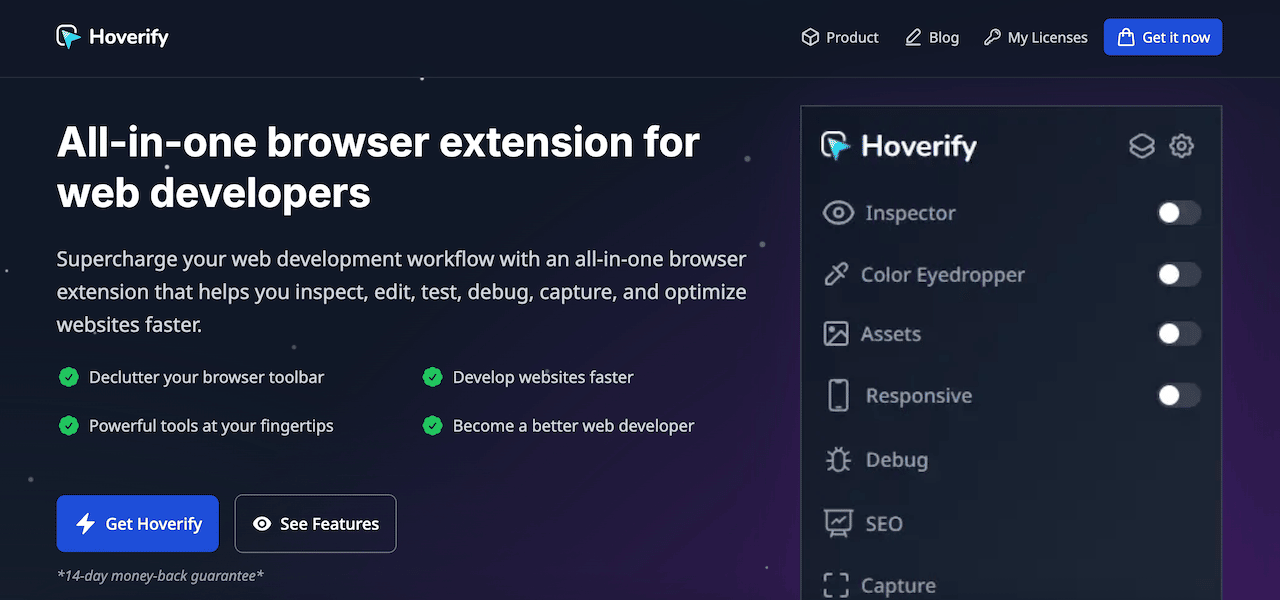
Hoverify is a browser extension that bundles a whole set of web inspection and design tools into one tidy interface. Here’s what’s inside:
Element inspector. Hover over any part of any website and instantly see the CSS behind it: fonts, colours, spacing, sizing. No opening DevTools, no digging through panels. It’s right there on hover.
Colour eyedropper. Pick exact colours from anywhere on a webpage. Useful for matching a client’s existing palette when you’re building their new site.
Assets extractor. Pull every image, SVG, video, or PDF from a site in seconds. Massive time-saver when you’re doing research or gathering reference material.
Site stack detector. See exactly what platform, theme, plugins, and hosting a website is running on. Handy when a client says “I want something like this site” and you need to know what you’re actually looking at.
Full-page screenshots. Capture an entire webpage in one go, not just what’s visible in the viewport.
Real-time CSS testing. Test custom CSS changes directly in the browser before touching WordPress. See the result, then apply it with confidence.
SEO checker. Run a basic SEO check on any page without leaving the browser.
And then there’s the one I reach for most.
Why the responsive viewer is a game changer
The responsive viewer is Hoverify’s standout feature, and it’s the reason I open it on every single site I build.
Instead of shrinking and expanding your browser window to check how a page looks at different screen sizes, Hoverify shows you multiple screen sizes at once in a single scrollable view. Desktop, tablet, and mobile, side by side. You spot the broken layout or the text that’s overflowing on tablet while you’re still looking at desktop.
No more switching. No more missing things. One scroll, and you’ve checked every breakpoint.
If responsive design has ever stressed you out, and I know it has for a lot of graphic designers making the leap into web design, this feature alone is worth the price of the tool.
For more tools that make building WordPress websites less painful, check out my useful tools page.
Is there anything Hoverify doesn’t do well?
One honest limitation: the colour eyedropper only works within the browser. It can’t pick colours from elsewhere on your screen the way a dedicated tool like Sip (included in Setapp) can.
So I still use Sip for grabbing colours from outside the browser. But for everything else on a webpage, Hoverify handles it.
At a glance
⭐ Fave feature: The responsive viewer. Multiple screen sizes at once, one scroll, done. It catches broken layouts before your clients do.
👎 Dislikes: The colour eyedropper is browser-only. For picking colours from anywhere on your screen, a dedicated tool like Sip does it better.
🔄 Replaces: DevTools, a colour picker, a font inspector, an asset downloader, and a responsive tester, all in one extension.
📅 How often: Weekly without fail, and on every webpage I build.
My verdict: 4.5/5
So close to perfect. Hoverify is one of those small-but-mighty tools that quietly makes everything faster. At $30 USD a year, it’s one of the best value tools in my entire stack.
Try Hoverify for yourself
Hoverify comes with a 14-day money-back guarantee, so you can try it properly with zero risk.
Heads up: the link below is an affiliate link. If you sign up, I may earn a small commission at no extra cost to you.
In My Stack: related editions
These tools work alongside Hoverify in my day-to-day workflow:
- Wispr Flow: the AI dictation tool I use to write faster
- Setapp: where I get Sip, the colour picker that works anywhere on screen
- TextSniper: copies text from anywhere on your screen, including locked PDFs
- Divi: the WordPress theme and page builder I’ve used on every client site for 10 years

FAQ: Hoverify for web designers
What browsers does Hoverify work with?
Hoverify works with Chrome and other Chromium-based browsers including Edge and Brave. Check the Hoverify website for the most current list of supported browsers before purchasing.
Do I need to know CSS to use the element inspector?
A basic understanding helps you make sense of what you’re looking at, but you don’t need to be a developer. Even being able to identify font sizes, colours, and spacing values is enough to get real value from it. It’s also a great way to start learning CSS in context, seeing how real sites are built.
Can Hoverify replace DevTools completely?
For most day-to-day web design tasks, yes. Hoverify makes the most common DevTools actions much faster and more accessible. If you’re doing deep debugging or writing complex JavaScript, you’ll still need DevTools. But for inspecting elements, testing CSS, and checking responsiveness, Hoverify is quicker.
Is Hoverify worth it if I’m just starting out in web design?
Yes, especially for the responsive viewer. New web designers often spend a lot of time manually checking breakpoints by resizing the browser. Hoverify eliminates that frustration immediately. The element inspector is also a great learning tool for understanding how websites are actually built.
What’s the difference between the annual and lifetime plans?
The annual plan is $30 USD per year. The lifetime plan is $89 USD as a one-time payment. If you plan to use it ongoing (and once you try it, you will), the lifetime plan pays for itself in under three years.
👉 Get web designer tips right in your inbox
Over 35,000 designers are already getting practical web design tips, and behind-the-scenes business goodness delivered straight to their inbox from me. Want in? Pop your email address below and I’ll send more tips like these your way!
Em x
PS. This post contains affiliate links. If you purchase through my link, I may earn a small commission — at no extra cost to you. I only ever share tools I genuinely love and use myself.
💌
Web Boss Weekly
Every week, straight to your inbox: tips, how-to’s, inspo, and free resources to help you work smarter and earn more as a designer. Add your email below.
About the author
Emma Kate is a WordPress educator who helps graphic designers inspect, build, and launch websites for clients without touching code. Learn through her self-paced courses, the WP Mavens membership, or the Consistent Clients Club. She is the co-founder of the Designer Boss Summit, one of the biggest events in the design community. Watch the free training.